

Updating your profile & photo
Your profile is how you show up in messages, comments, and tasks. Here's how to update it.
Open your settings
Click your profile menu (your initials or photo) at the top of the screen, or go to Settings.
Open your personal / profile settings.
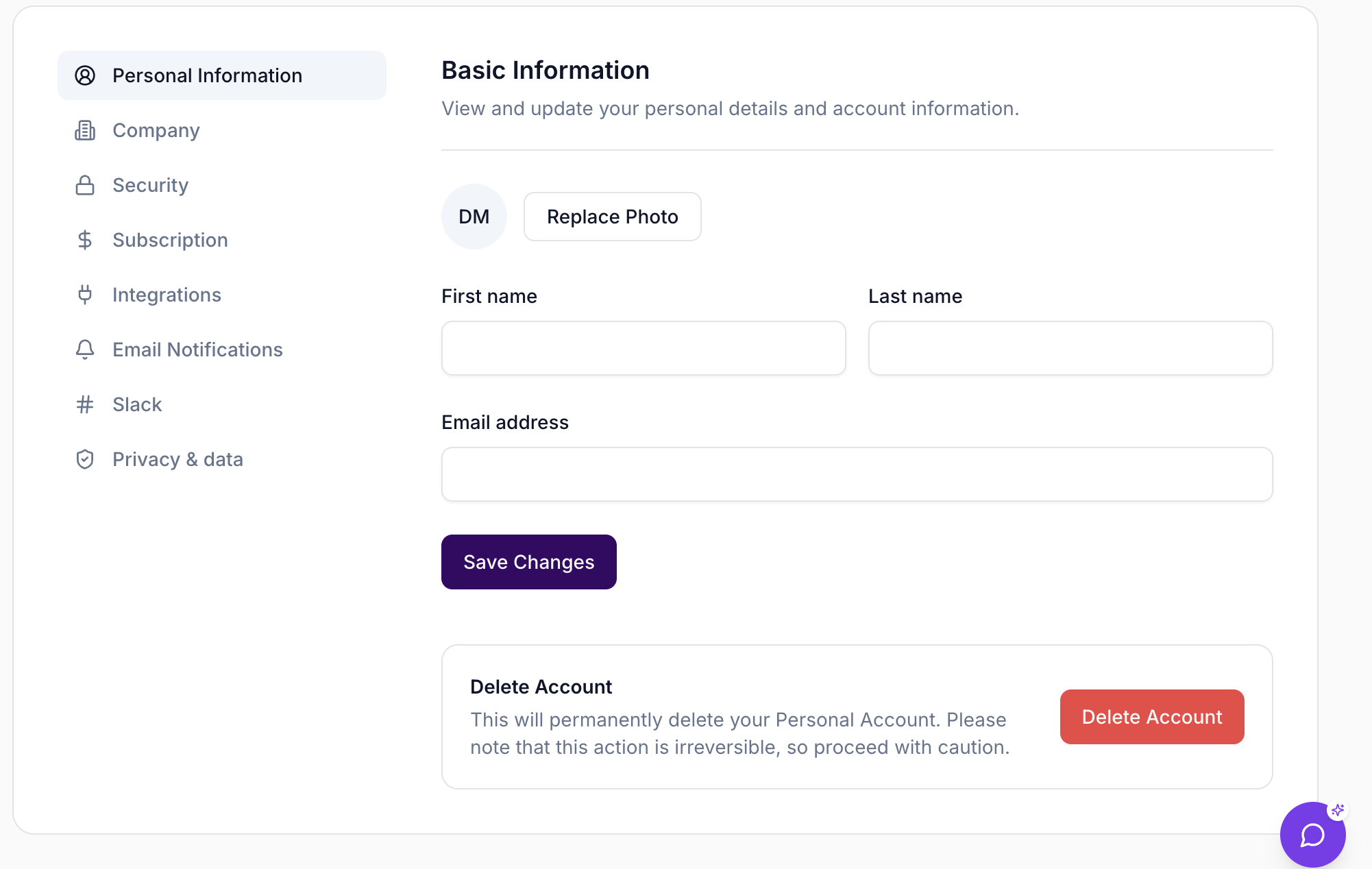
Update your name
Edit your name field.
Save your changes.
Change your profile photo
In your profile settings, find the photo / avatar option.
Click to upload a new photo and choose an image from your computer.
The new photo is saved and appears across the app — in the top bar, on your comments, and on your messages.
Your photo updates everywhere automatically; you may need to refresh once to see it in every spot.
Tips
A clear, square headshot works best.
If your photo doesn't appear right away, refresh the page.
Related
Was this helpful?