

Subtasks and task details
When you open a task, everything about it lives in one panel.
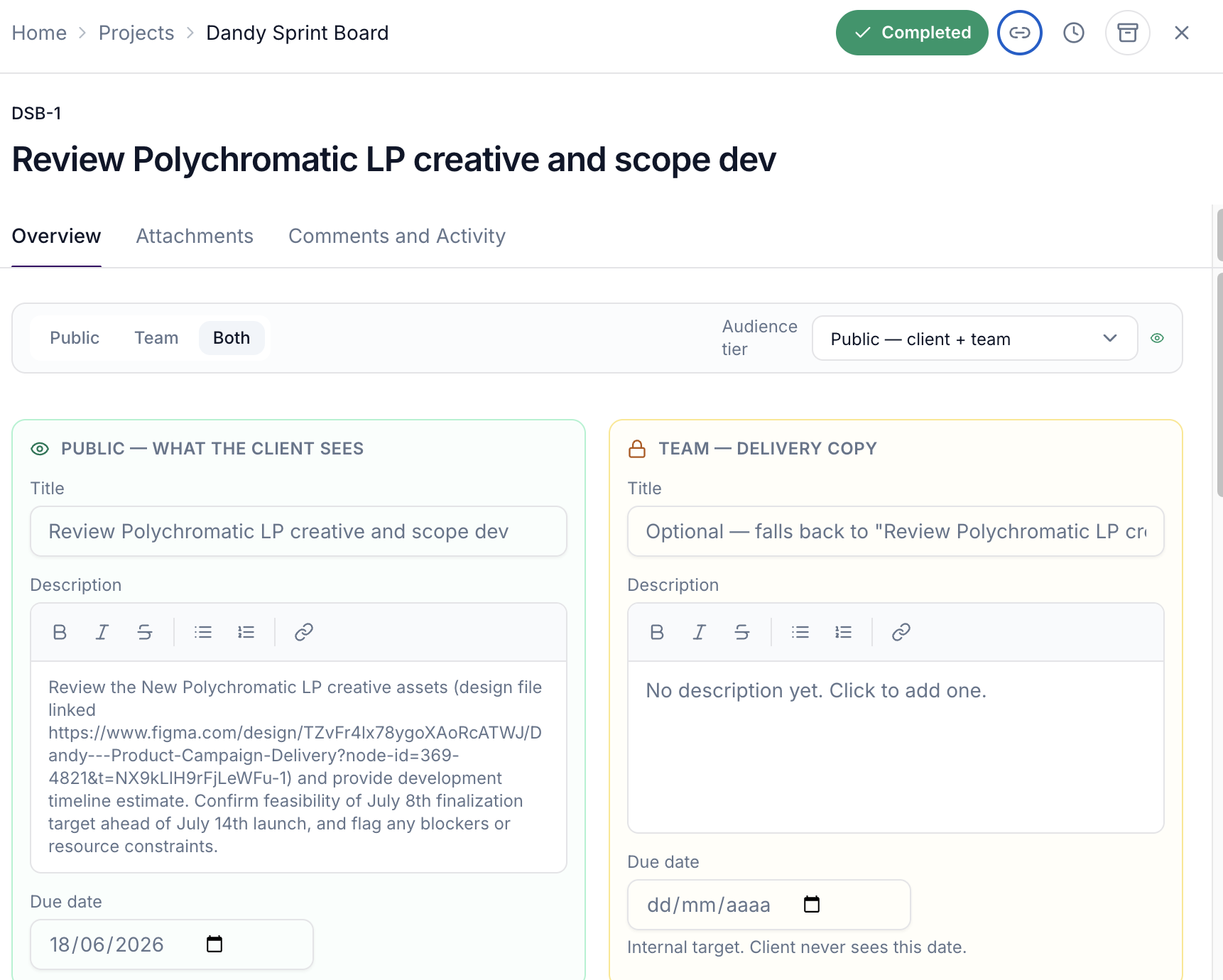
The overview
The top of the task shows its title, description, status, priority, and due date (when set). This is the quick summary of what's being done and where it stands.
Subtasks
Larger tasks are sometimes broken into subtasks — smaller steps that make up the whole. You'll see them listed within the task, each with its own status, so you can follow the work step by step as items get checked off.
Comments
Scroll to the comments to read the discussion or add your own. See Commenting on a task.
Attachments
Files and images related to the task (including any screenshots from feedback) appear on the task so you have the reference material right there.
Copy a link to a task
Need to point someone to a specific task? Use the copy link option on the task and paste it into a message. The link opens the task directly for anyone who has access to the project.
Related