

How a build reaches your site
Nothing AI Builder makes goes live on its own. Every path ends with a human action. What that action is depends on your CMS, and it is worth knowing before your first build.
Prismic
Two artefacts: code and content.
Code — every component in the build is committed to a single branch, in a single commit, and one pull request is opened. One branch rather than one per component is deliberate: it means one preview deploy that renders the assembled page instead of three that each render a fragment. The component schemas are pushed to Prismic at the same time.
Content — we read the component definitions from that branch, write brand-voice copy into each section, and stage a document in Prismic.
The document arrives unpublished, and we cannot publish it. Prismic's Migration API can only write an unpublished document into a release; there is no public API to publish one. Any tool that tells you it published to Prismic is telling you something that is not true.
So the last two steps are yours:
- Merge the pull request. Code goes to production first. Review the diff and check the preview deploy.
- Publish in Prismic. Open the staged document, use Prismic's own preview to render it against the PR deploy, then publish it.
Use Preview page on the Pages tab to get to the right document. Inside Prismic, click Preview the page and pick the Backpack PR Preview to see it rendered against your branch rather than against production.
WordPress
Simpler, because there is no repository in the loop. Components go straight to your staging install through the Backpack Pulse plugin, and a draft post is created with the block already placed. You get a link into the Gutenberg editor.
No GitHub, no pull request, no preview deploy. Just staging URL and secret.
Each block keeps one draft post, so regenerating updates the same URL rather than filling your drafts with copies.
Keep the plugin current — the Component Library tab shows the installed version against the latest and offers the download. Several features are version-gated, including the styled HTML preview that renders your component even when the dynamic block does not.
When both a production URL and secret are configured, you also get Promote to production to move a reviewed block across.
Webflow
Connect Webflow and pick a site. Components are queued to the site, and you finish in the Webflow Designer.
One thing to know: if your connection was created before we added the custom-code permission, JSON-LD writes will fail with a permission error. Reconnecting fixes it. We ask for the narrowest set of permissions Webflow allows, which is why this occasionally needs a top-up rather than being granted up front.
Reading a component's status
- Working — still generating.
- Review required before publishing — the preview is up and the PR is open. Your move.
- Ready to publish — the PR is merged and the code is live. Now publish the content in your CMS.
- Live on production — done.
- Generation failed / PR closed without merging — nothing shipped.
The gap between "Ready to publish" and "Live on production" is the CMS step, and it is the one people miss. Ready means the code is live and the content is waiting for you.
Your component library
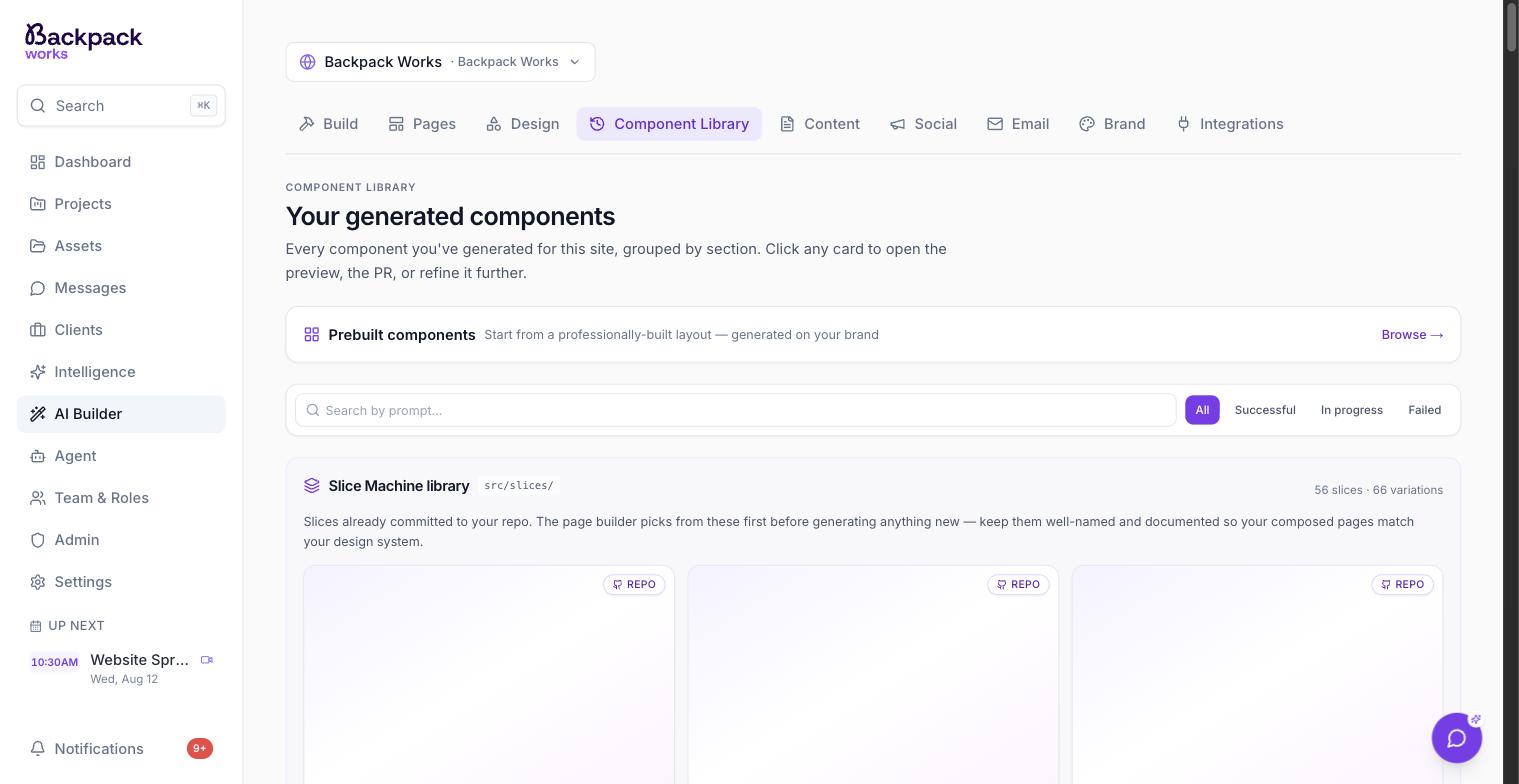
The Component Library tab holds everything you have generated, grouped into sections — heroes, features, testimonials, pricing, FAQ, calls to action and so on. On Prismic it also lists the slices already committed to your repo, and the page builder picks from those before generating anything new. Well-named, well-documented existing components mean fewer things get invented from scratch.
Prebuilt components, at the top, are professionally-built layouts rendered on your brand. They are generated deterministically rather than by a model, so they come out the same every time.