

Pinning a comment on your site
Once the extension is installed and connected (how to install), leaving feedback takes seconds.
Leave a pinned comment
Open your website in Chrome or Edge — your live site, or a staging/preview link from your team. (Feedback only works on pages your team has allowlisted — see Which pages show the widget.)
Click the Backpack OS feedback widget on the page (or the extension icon in your toolbar) to start a comment.
Click the exact element you want to talk about — a button, a headline, an image. A pin drops there.
Type your note: what you'd like changed and why.
(Optional) Add a screenshot or screen recording, and set a priority. See Adding a screenshot or recording and Setting a priority.
Click Send (or Submit).
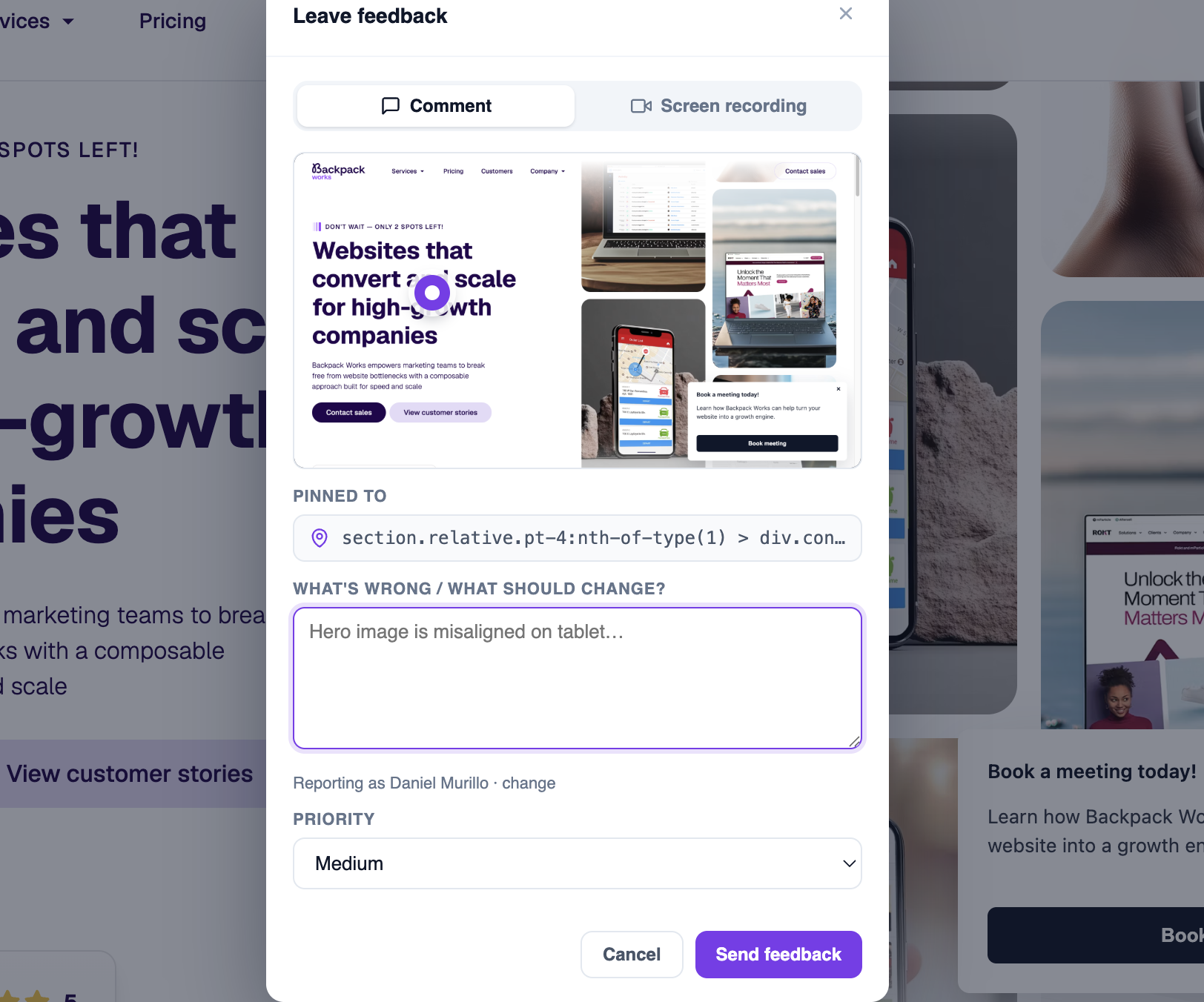
Your comment is sent to your project as a task, with the page URL and the pinned location included so your team knows exactly what you mean. See Where your feedback goes.
Tips for great feedback
Be specific: "Make this headline shorter and bolder" beats "this looks off."
One idea per pin: separate, pinpointed comments are easier to action than one long note.
Reference the real thing: pin the actual element rather than describing its location.
Related