

Accepting your invite & signing in
Your team sends you an email invitation to join your project. Here's how to get in.
Accept your invitation
Open the invitation email from Backpack OS in your inbox.
Click the Accept invitation button (or the link) in the email.
You'll land on Backpack OS to finish setting up your account:
Confirm your name.
Set a password (or continue with the sign‑in option shown).
Once you're in, you'll see your dashboard with your project.
Didn't get the invite? Check your spam/junk folder first. If it's not there, ask your team to re‑send it, or see I can't sign in.
Signing in later
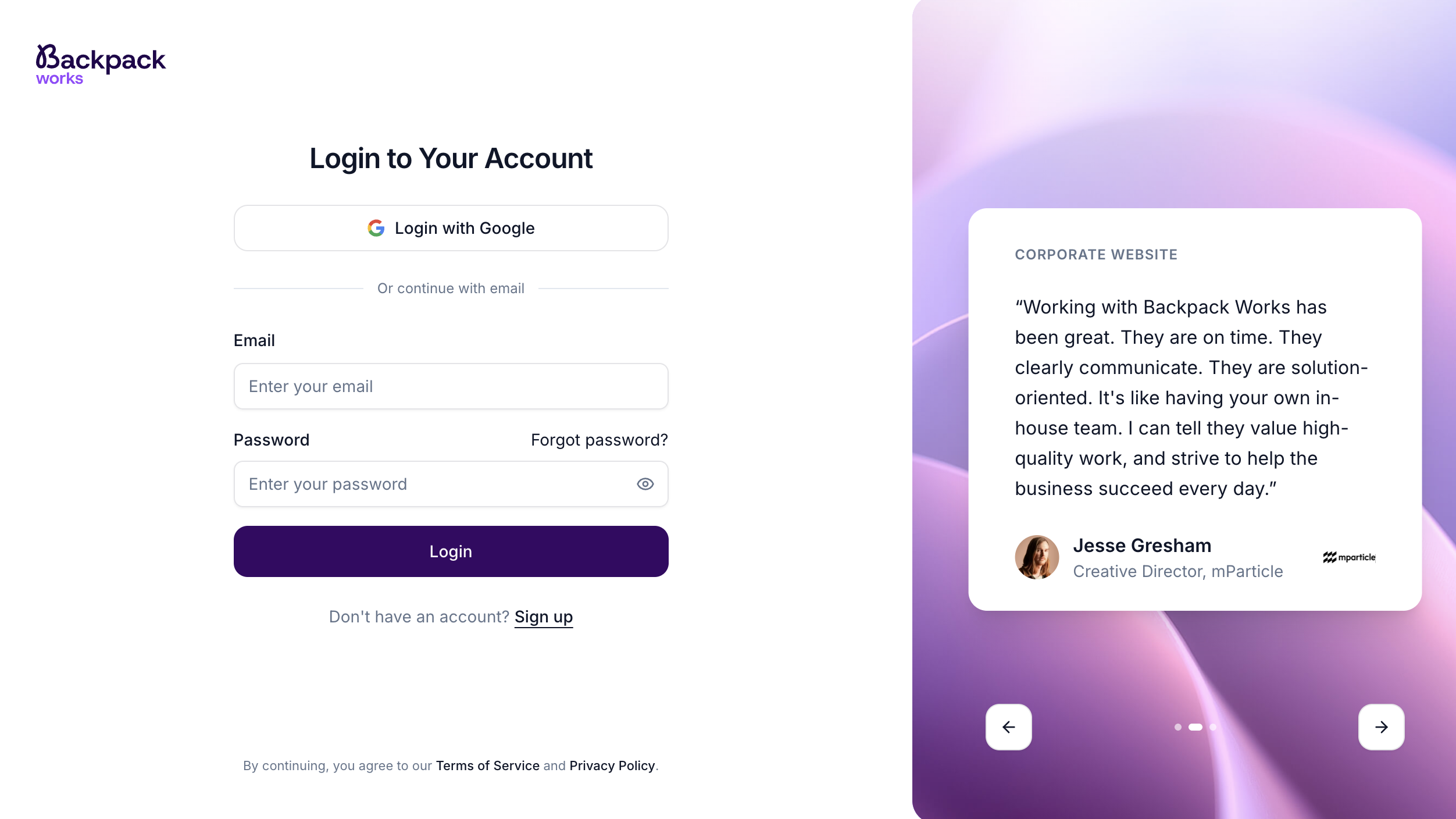
Go to app.backpack.works.
Enter the email address your invite was sent to, and your password.
Click Sign in.
You'll stay signed in on that browser, so you usually won't need to log in every time.
Tips
Use the same email address your invitation was sent to — that's the one linked to your project.
Bookmark app.backpack.works so it's one click away.
Related