

Adding a screenshot or recording
A picture (or a quick recording) makes feedback unmistakable. You can attach one while you're leaving a pinned comment.
Attach a screenshot
Start a pinned comment on your page. See Pinning a comment on your site.
Choose the screenshot option in the feedback widget.
The current page view is captured and attached to your comment.
Finish your note and Send.
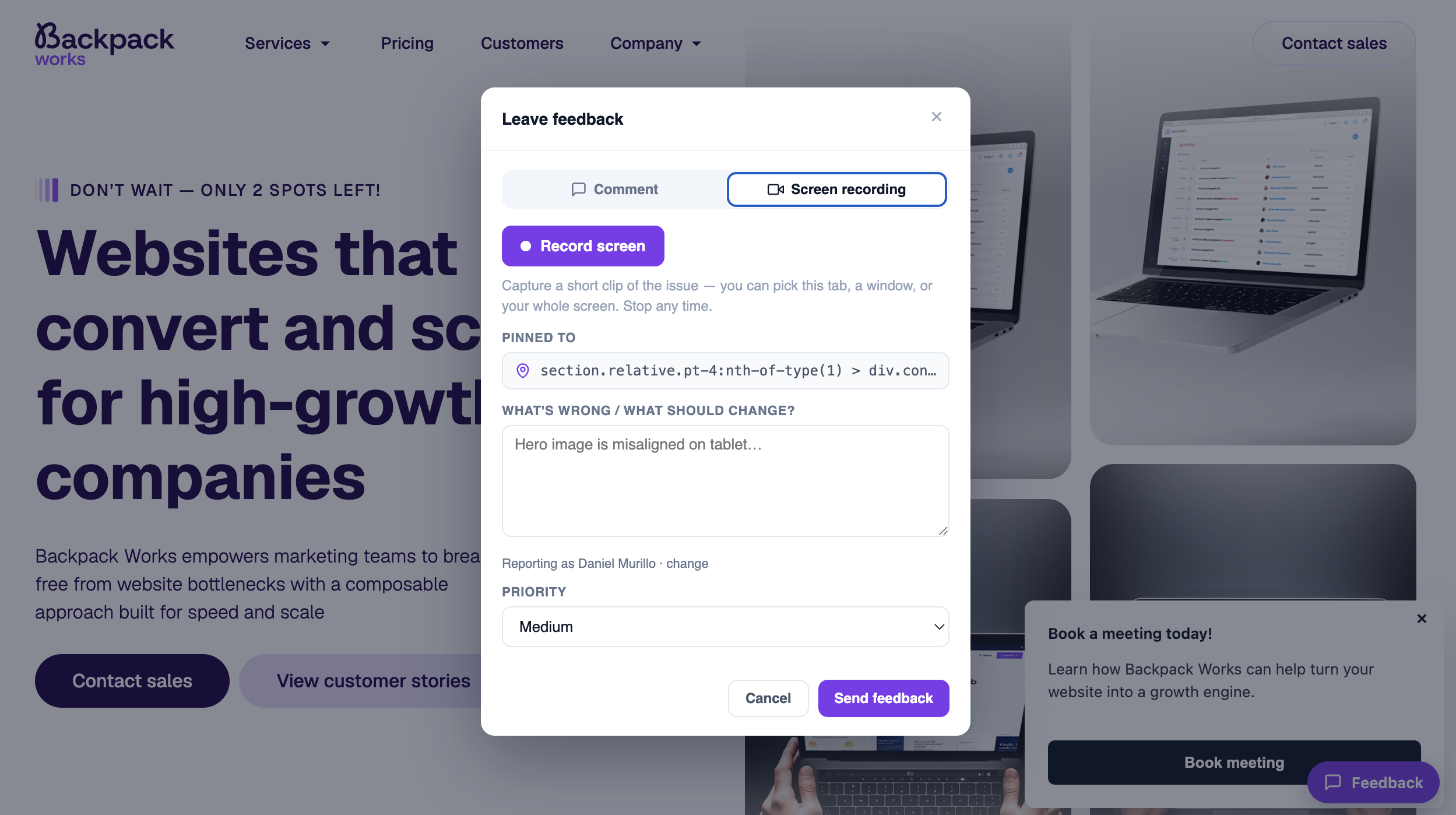
Record a short clip
For something that's easier to show than describe (a hover effect, a glitch, a flow):
Start a pinned comment.
Choose the recording option.
Record what's happening on the page, then stop.
The clip attaches to your comment — finish and Send.
What your team receives
The screenshot or recording is attached to the task your feedback creates, so your team can see exactly what you saw without any guesswork. See Where your feedback goes.
Tips
A screenshot is perfect for "this should look different."
A recording is perfect for "this doesn't behave right."
Related